
Lead statuses
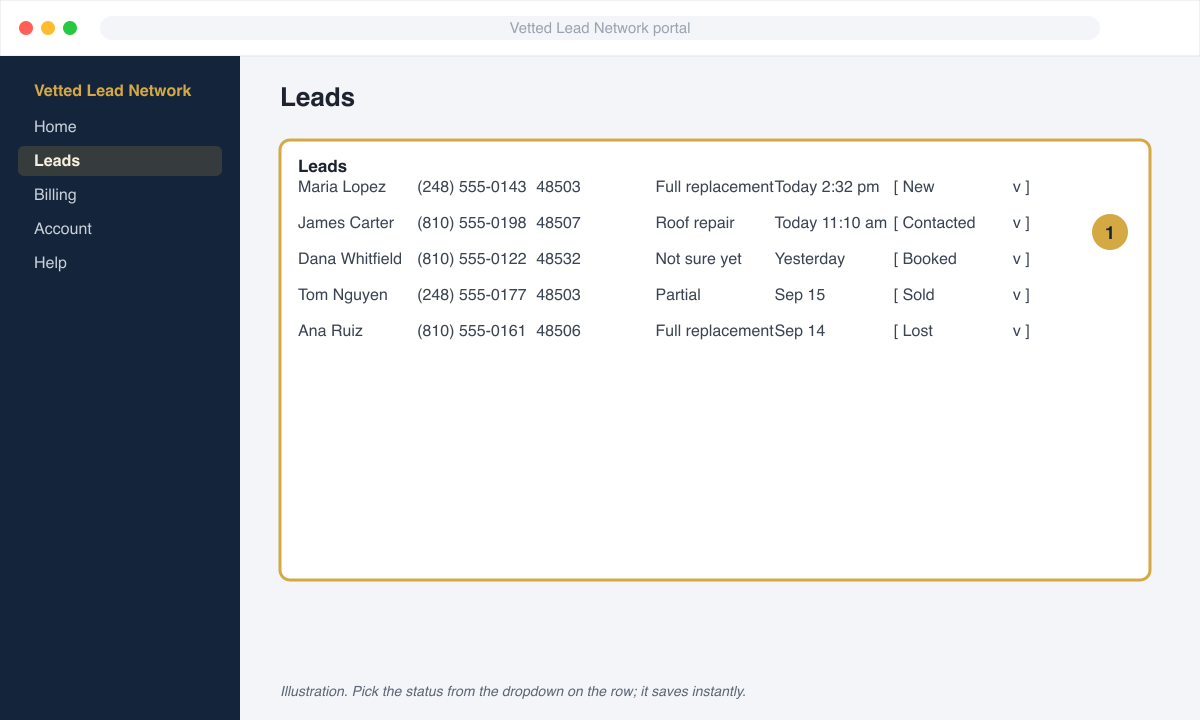
Every lead in your portal has a status. You set it; we never change it for you. Keeping statuses current takes seconds and it is the single best thing you can do to get better leads over time, because we use your booked and sold rates when routing.
| Status | Use it when |
|---|---|
| New | The lead just arrived and nobody has tried to reach them yet. This is the default. |
| Contacted | You spoke with the homeowner, or you have left messages and texts. Set this after your first real attempt. |
| Booked | An inspection or estimate is on the calendar. |
| Sold | The homeowner signed. Add the job value in the note if you like; it helps us report your return. |
| Lost | You are done pursuing it: they chose someone else, changed their mind, or never answered after your full follow-up. Add a one-word reason in the note. |
How to set a status
Section titled “How to set a status”- Open Leads in your portal.
- Find the lead. The newest are at the top.
- Pick the status from the dropdown on that row. It saves immediately.
- Optional: open the lead and add a note. Notes are private to your company.
You can move a lead through several statuses. Contacted, then Booked, then Sold is the normal path. The list always shows the latest one.
Why bother
Section titled “Why bother”- Better routing. Partners who book and sell get matched more, because we weight routing by results as well as capacity.
- Your own numbers. The portal shows contact rate, booking rate, and cost per booked appointment, but only if the statuses are real.
- Faster disputes. A note like “called 6 times over 2 days, number disconnected” is exactly the contact record we ask for when you dispute.