
Connect GoHighLevel
This is the fastest connection. It also works for any white-labeled GoHighLevel, including IgniteNation, LeadConnector, and the CRMs many marketing agencies give their roofing clients.
What you need: a login to your GoHighLevel sub-account with permission to edit workflows. What we need from you: one webhook link.
-
Open Automation. In the left menu click Automation, then Workflows.

Automation lives in the left menu. The Workflows tab lists every workflow in the account. -
Create a workflow. Click Create Workflow, then Start from Scratch. Name it something like
Vetted Lead Network leads.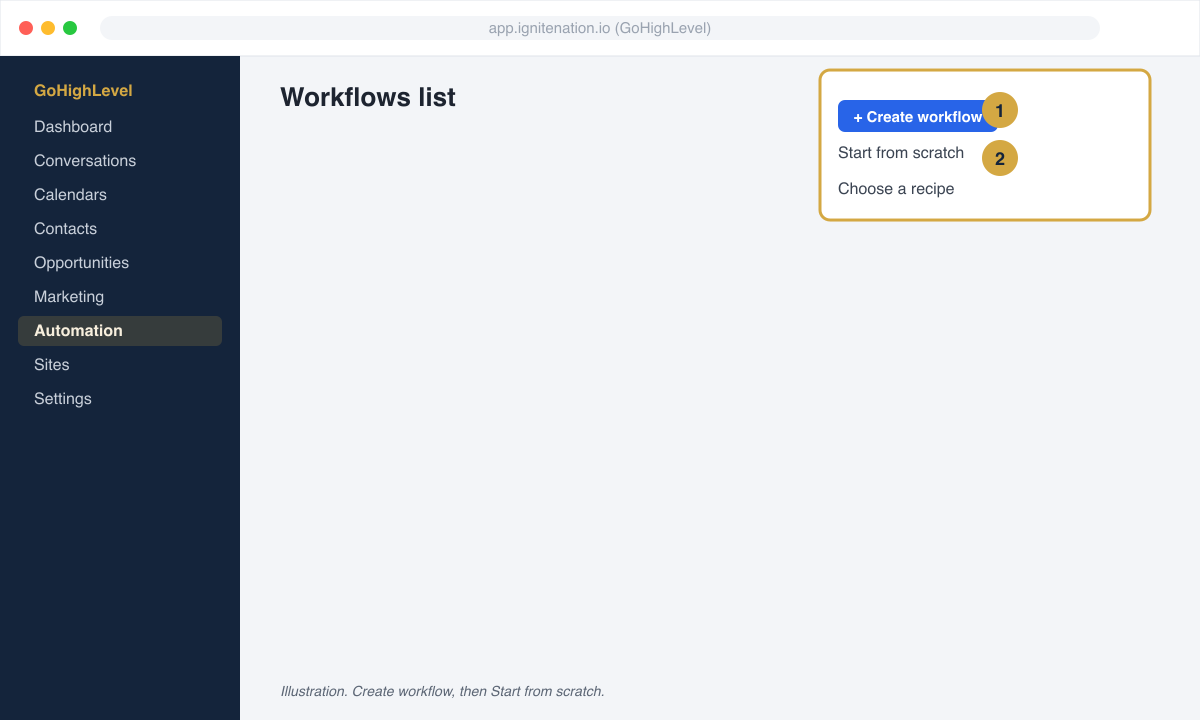
Create Workflow, then Start from Scratch. -
Add the trigger. Click Add New Trigger and choose Inbound Webhook. GoHighLevel shows a webhook URL. Click Copy next to it. That link is what we need.
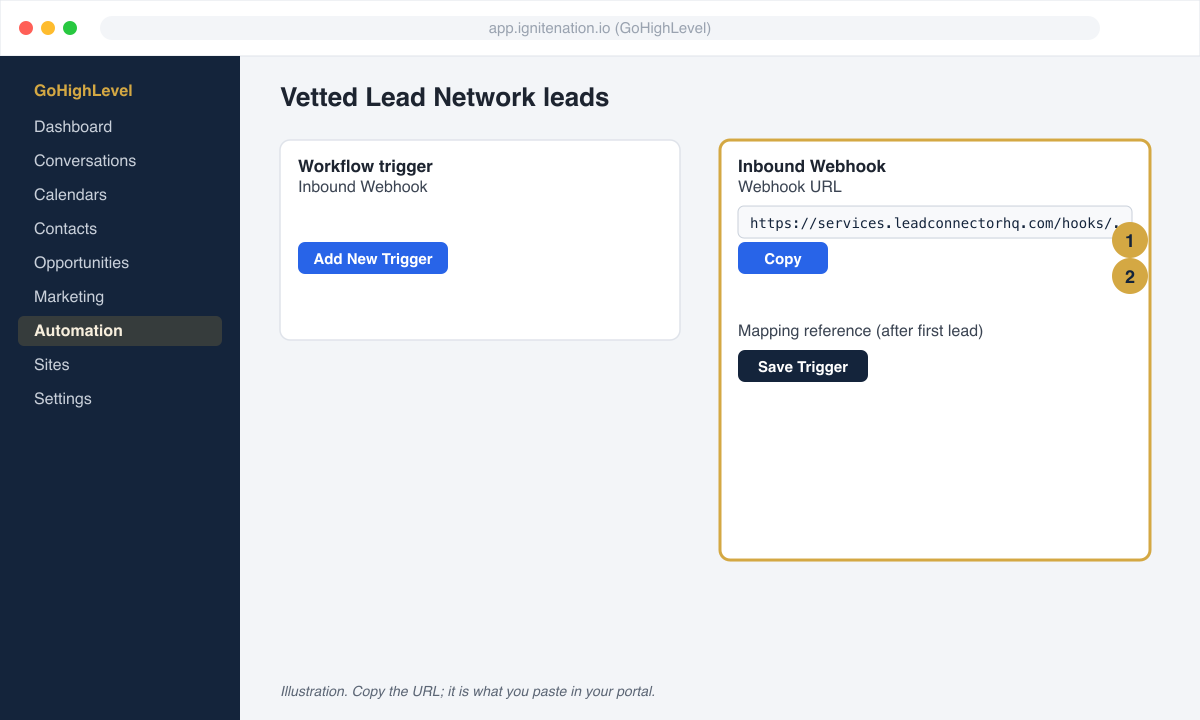
The Inbound Webhook trigger shows the link to copy. Keep this tab open. -
Paste the link in your portal. In your Vetted Lead Network portal open Finish setup, then CRM connection. Choose GoHighLevel and paste the webhook link. Save. We send a test lead within one business day.
-
Map the fields. Back in GoHighLevel, once our test lead arrives click Test Trigger on the Inbound Webhook step, pick the request that just came in as the mapping reference, and save the trigger. Then click Add Action and choose Create Contact (called Create Update Contact in some accounts). Match each field:
GoHighLevel field Our field First Name first_nameLast Name last_namePhone phoneEmail emailAddress addressCity cityState statePostal Code zip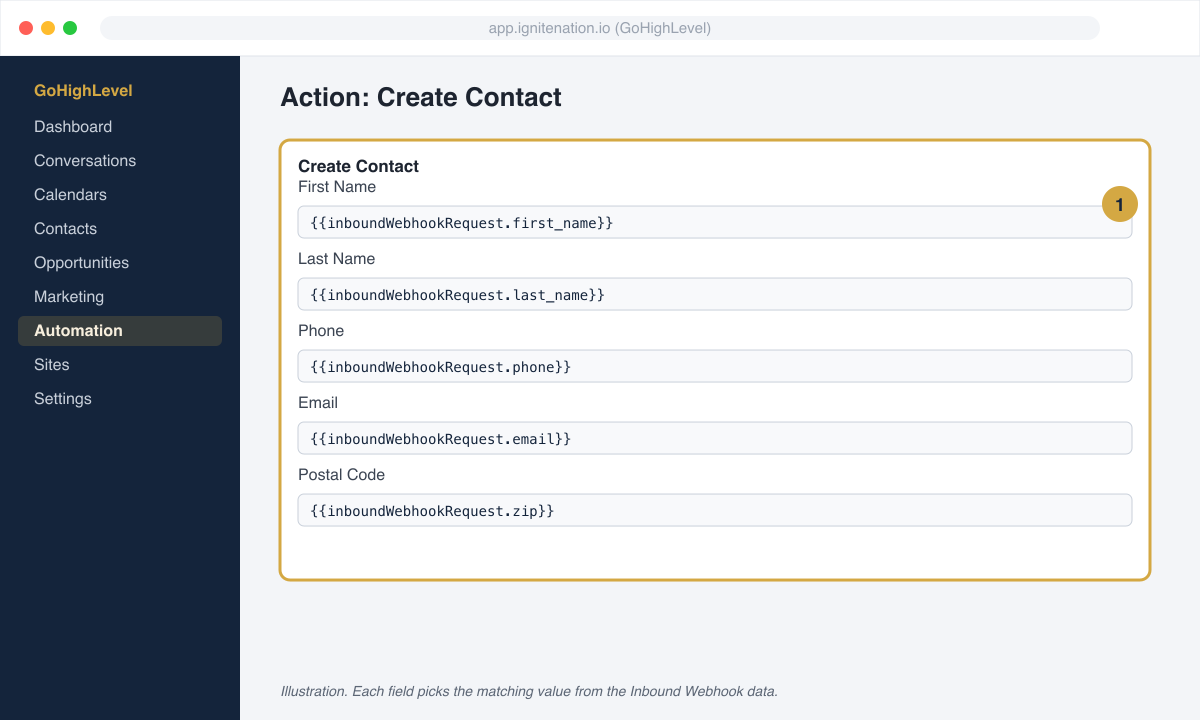
Create Contact maps our fields to your contact record. -
Add a tag and a notification (optional but recommended). Add the action Add Contact Tag with a tag like
vetted-lead. Add Send Internal Notification to text or email your sales rep the moment a lead arrives. -
Save and Publish. Toggle the workflow from Draft to Publish in the top right, then click Save.
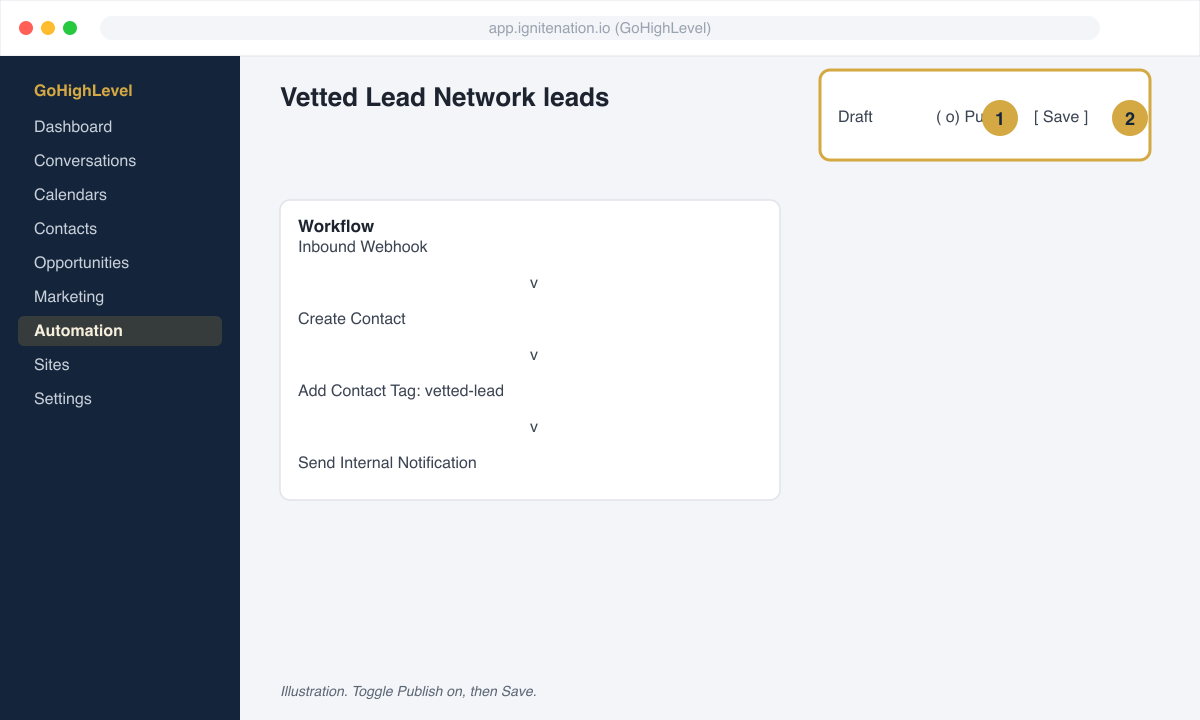
A workflow does nothing until it is published.
Official article: How to use the Inbound Webhook workflow premium trigger on the HighLevel support portal.
Check it worked
Section titled “Check it worked”When our test lead named VLN Test arrives, open Contacts in GoHighLevel and search for it. You should see the contact with the tag you added. Then reply got it in your portal or to the text you received.
Common problems
Section titled “Common problems”- The contact was created but has no phone. The Phone field is not mapped. Open the Create Contact action and map
phone. - Nothing arrived. The workflow is still in Draft, or you pasted a link from a different workflow. Confirm the toggle says Published and re-copy the link from the Inbound Webhook trigger.
- Duplicate contacts. GoHighLevel matches on email and phone by default. If you turned that off, turn it back on under Settings, Business Profile, Contact Deduplication.