
Connect HubSpot
What you need: a HubSpot super admin login (only super admins can create private apps). What we need from you: one private app access token.
-
Open Settings. Click the gear icon in the top bar.
-
Go to Private Apps. In the left settings menu open Integrations, then Private Apps.
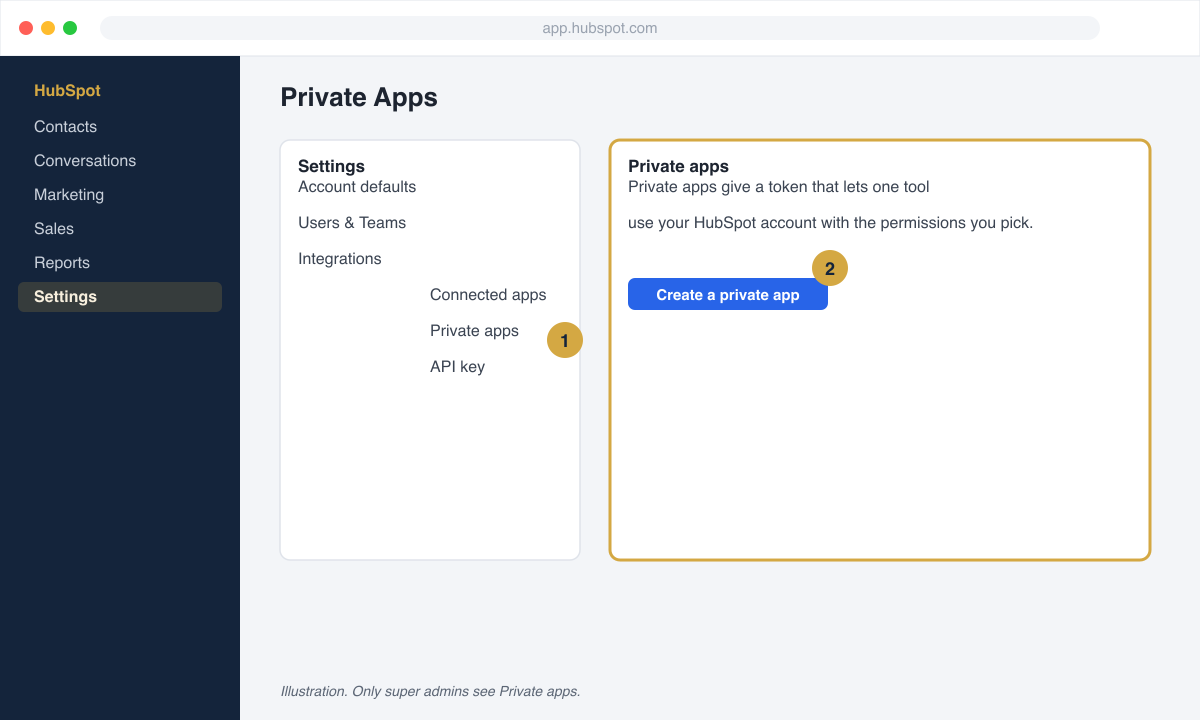
IllustrationIntegrations, then Private Apps. -
Create a private app. Click Create a private app. On the Basic Info tab name it
Vetted Lead Network. -
Set the scopes. Open the Scopes tab, search for
contacts, and tick exactly these two:crm.objects.contacts.writecrm.objects.contacts.read
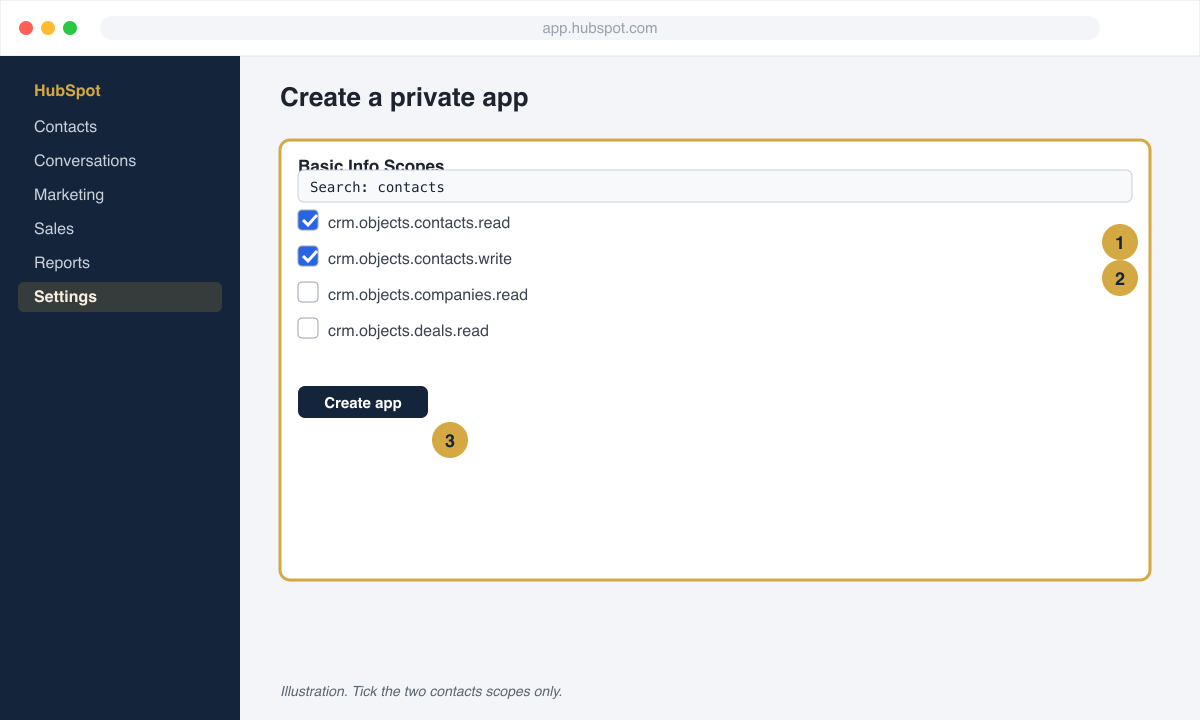
IllustrationTwo scopes. Nothing else is needed. -
Create the app and copy the token. Click Create app, confirm, then click Show token and Copy.
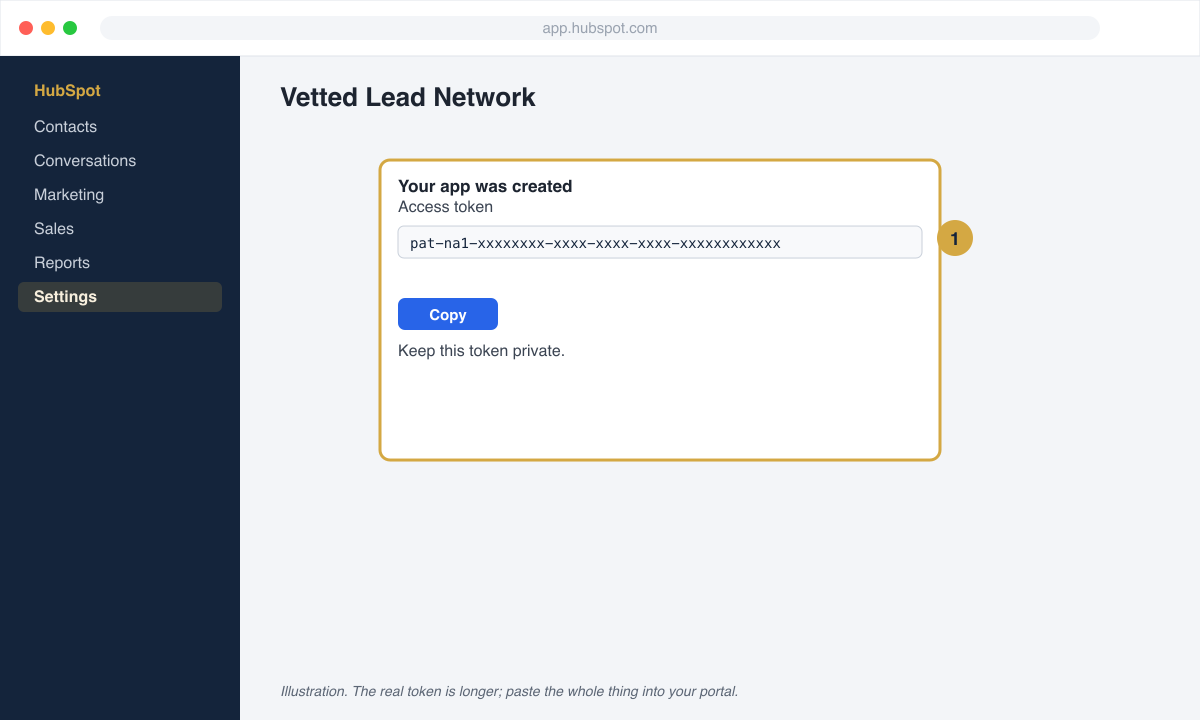
IllustrationThe token starts with pat-. Copy it now. -
Paste it in your portal. In your Vetted Lead Network portal open Finish setup, then CRM connection. Choose HubSpot, paste the token, and save.
Official article: Create and edit private apps in the HubSpot knowledge base.
What we create in HubSpot
Section titled “What we create in HubSpot”For every lead we create a Contact with first name, last name, phone, email, address, city, state, and ZIP. Lead source (the hs_lead_status or a custom Lead Source property, whichever you use) is set to Vetted Lead Network when you tell us which property to use.
Check it worked
Section titled “Check it worked”When our test lead named VLN Test arrives, open Contacts and search for it. Then reply got it in your portal or to the text you received.
Common problems
Section titled “Common problems”- You cannot see Private Apps. Your login is not a super admin. Ask the account owner.
- Contacts are created but missing the address. HubSpot address properties are
address,city,state, andzip. If your account renamed them, tell us the property names.