
Connect AccuLynx
What you need: an AccuLynx Company or Location Administrator login. What we need from you: one API key (one per location if you run more than one).
-
Turn on AppConnections if it is not on already. In the AccuLynx Market, open Add-Ons, find AppConnections, and click Enable. It is AccuLynx’s name for API access.
-
Open Account Settings. Click your name or the gear icon, then Account Settings.
-
Go to API Keys. Choose Add-On Features and Integrations, then API Keys.
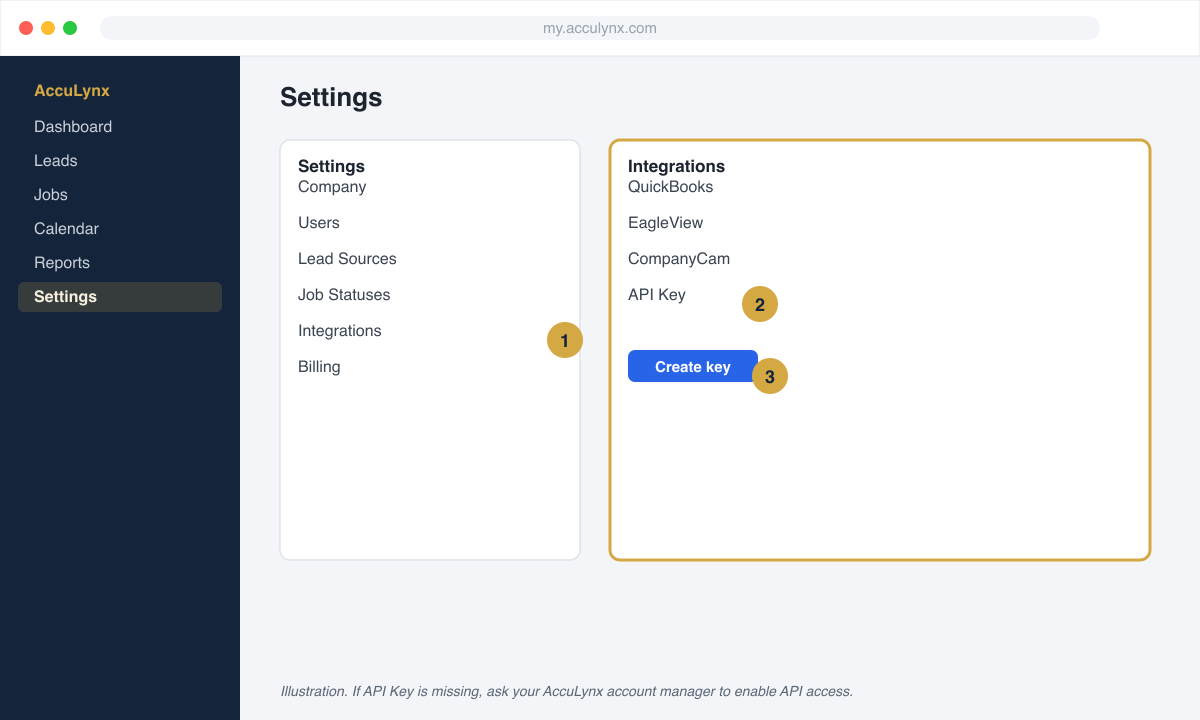
IllustrationSettings, Integrations, API Key. -
Create a key. Click Create Key and name it
Vetted Lead Network. If you have more than one location, make one key per location that should receive leads.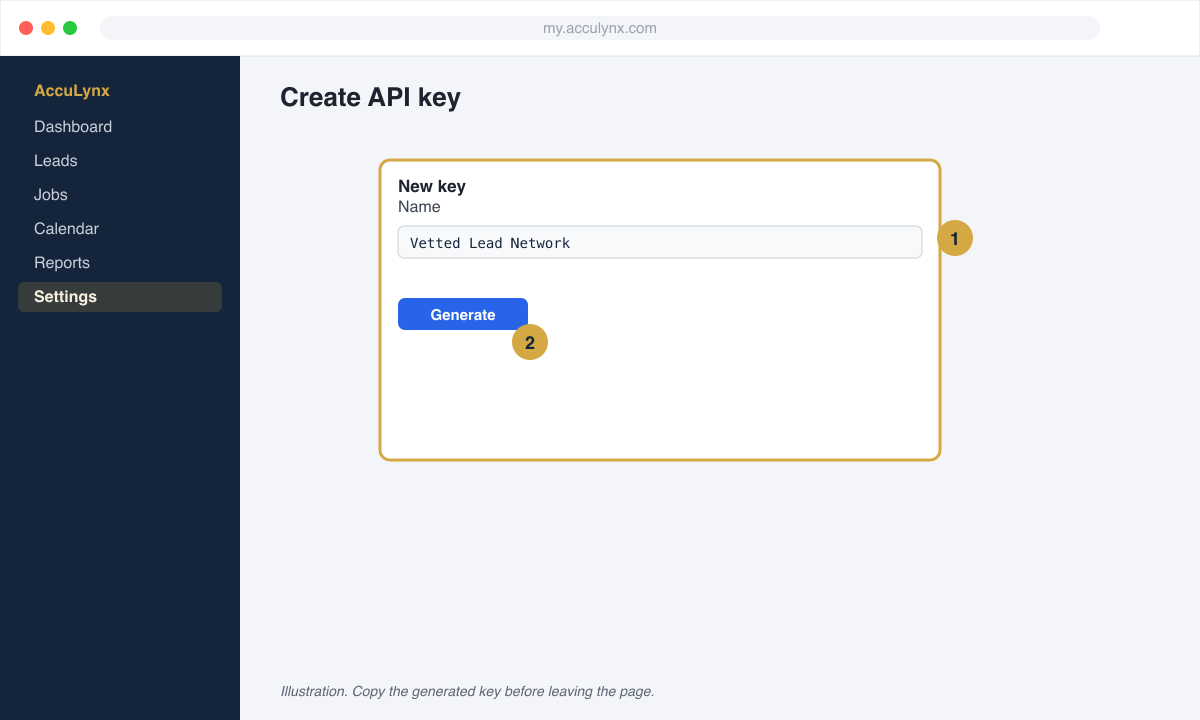
IllustrationName the key so you can find and remove it later. -
Copy the key and keep the page open until you have pasted it.
-
Paste it in your portal. In your Vetted Lead Network portal open Finish setup, then CRM connection. Choose AccuLynx, paste the key, and save.
Official reference: AccuLynx API authentication and the AppConnections page.
What we create in AccuLynx
Section titled “What we create in AccuLynx”For every lead we create a Lead record with the homeowner’s name, phone, email, and property address, with the lead source Vetted Lead Network. Add that source under Settings, Lead Sources if it is not there yet so your reports stay clean.
Check it worked
Section titled “Check it worked”When our test lead named VLN Test arrives, open your Leads list and search for it. Then reply got it in your portal or to the text you received.
Common problems
Section titled “Common problems”- No API Keys option. AppConnections is not enabled yet (step 1), or your login is not an administrator.
- The key works but leads have no address. Some AccuLynx accounts require a job location on create. Tell us and we adjust the mapping.