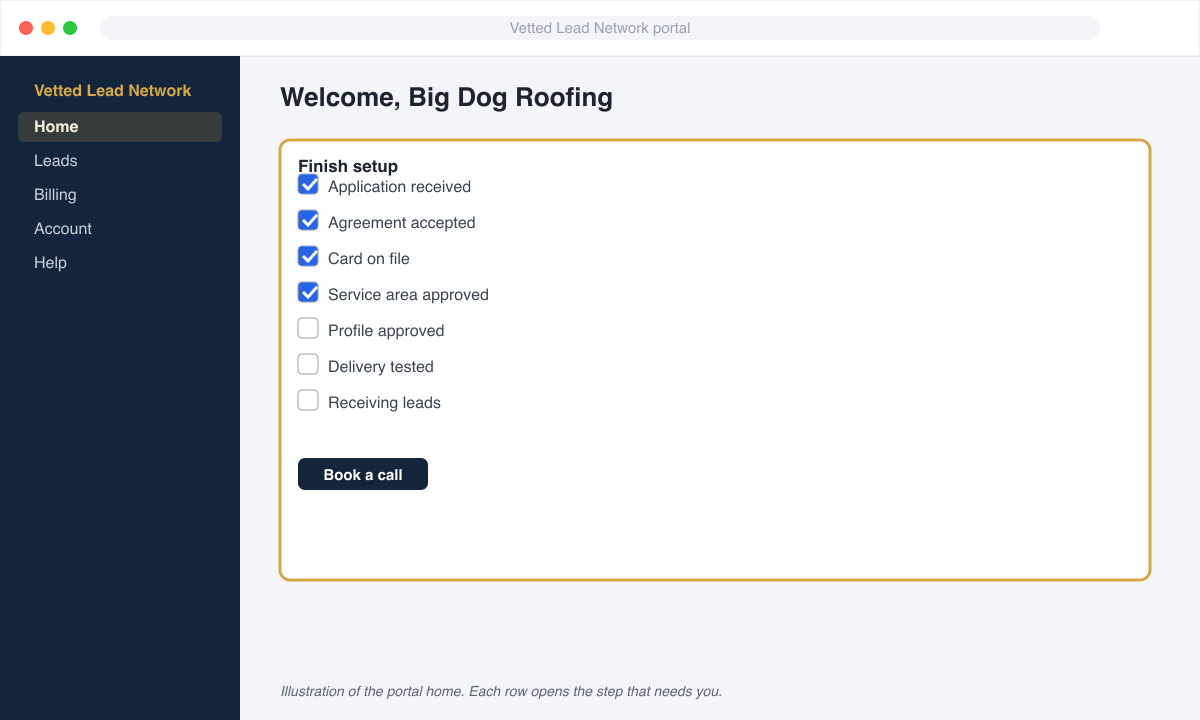
Finish setup
Your portal home shows a progress tracker. Leads start flowing when every step is green. Most partners finish in one sitting; the only step that can wait is the CRM connection.
-
Application received. Turns green the moment you submit the enrollment form. Nothing to do.
-
Agreement accepted. Green when you typed your name and accepted the Lead Purchase Agreement. You can download your signed copy any time from the portal.
-
Card on file. Green once a card is saved. We charged $1.00 to verify it; that dollar is not refunded and is not a credit. If this step is not green, click it to open a secure card page. See Update your card.
-
Service area approved. We turn your territory into a list of ZIP codes. You will see the list in the portal with Approve and Request changes. Check it carefully: a lead inside an approved ZIP is billable, and you can only dispute ZIPs that are not on the list.
-
Profile approved. Homeowners see your company name, a short description, your photo or logo, and your reviews on the match page. We build it from your Google Business Profile and what you told us. Ask for edits from the portal.
-
Delivery tested. Green when you have confirmed the test lead arrived. If you chose portal, email, and text only, this turns green automatically. If you are connecting a CRM, see Choose your CRM.
-
Receiving leads. Green when your first real lead is delivered.
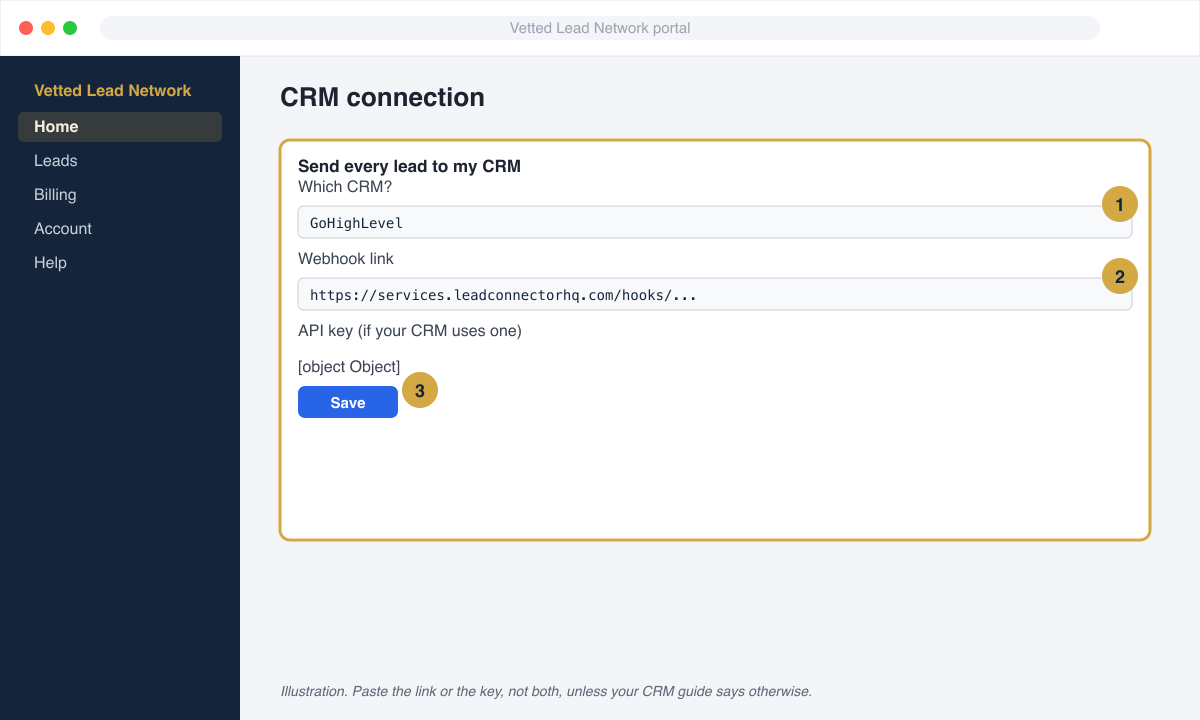
CRM connection card
Section titled “CRM connection card”This card is where you paste the webhook link or API key from your CRM guide. Choose your CRM from the list, paste, save. For CRMs we connect on our side (ServiceTitan, Roofr, Jobber, Leap, Housecall Pro, and others) just pick the CRM and, if it needs a sign-in, click Book a call. Change it any time; the new connection is tested with a fresh test lead.