
Connect a Google Sheet
Good for companies without a CRM, or as a backup copy of every lead.
What you need: a Google account. What we need from you: a sheet shared with us as an editor, and its link.
-
Create a new sheet. Go to sheets.google.com and click Blank. Name it
Vetted Lead Network leads. -
Add the header row. Paste this into cell A1. Each name goes in its own column, in this order.
first_name last_name phone email address city state zip roof_need property_type roof_age timeline priority delivered_at lead_id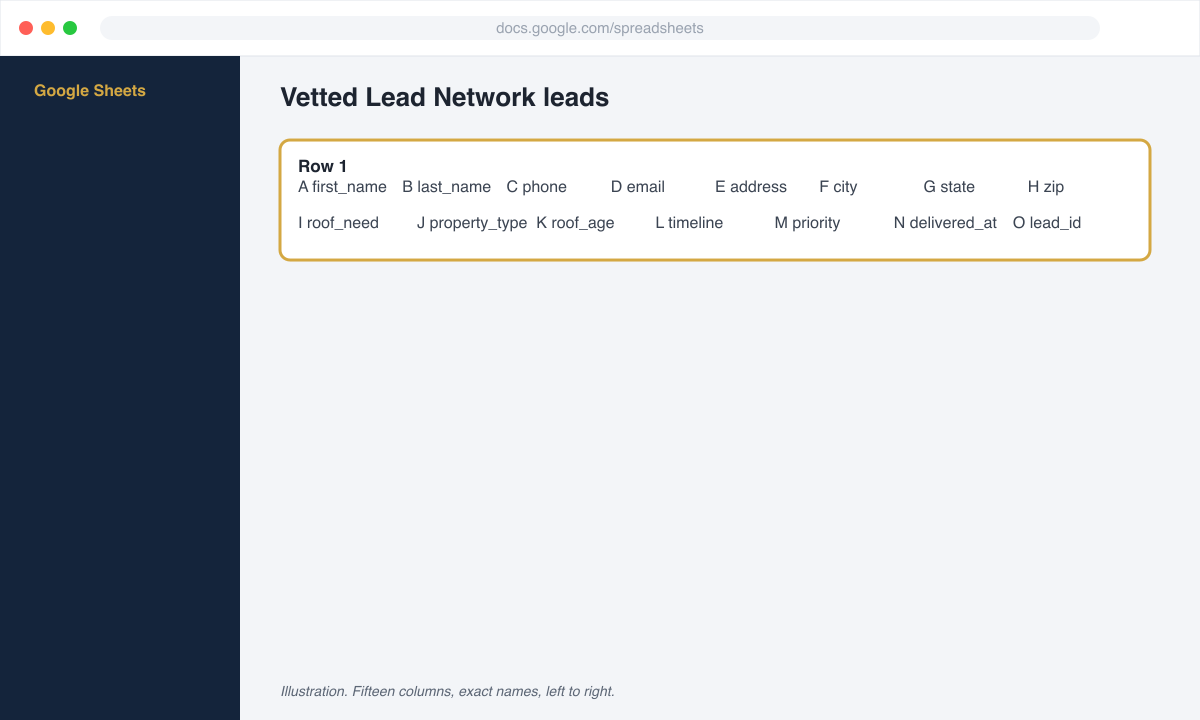
Row 1 is the header. Do not rename the columns; we write by name. -
Share it with us. Click Share in the top right, enter
leads@roofignite.com, set the role to Editor, and click Send.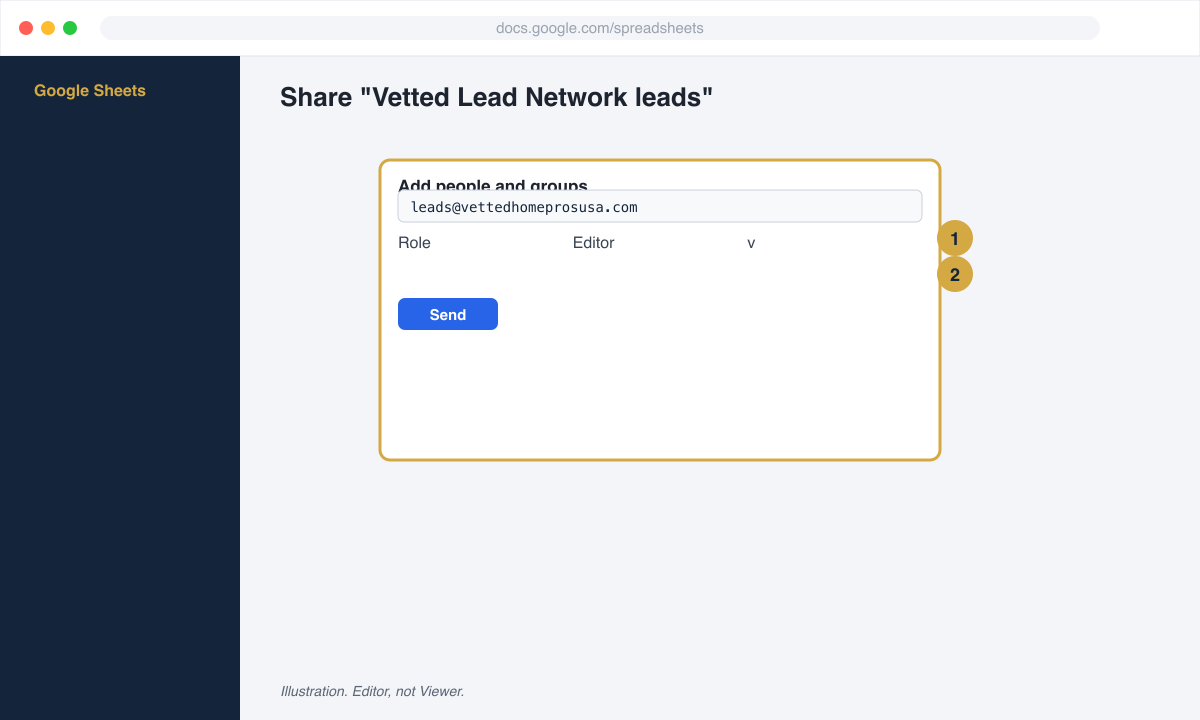
Editor, not Viewer. We need to add rows. -
Copy the sheet link. Click Share again, then Copy link.
-
Paste it in your portal. In your Vetted Lead Network portal open Finish setup, then CRM connection. Choose Google Sheet, paste the link, and save.
Check it worked
Section titled “Check it worked”When our test lead named VLN Test arrives it appears as a new row. Then reply got it in your portal or to the text you received.