
Connect JobNimbus
What you need: a JobNimbus login with admin access (only admins can create API keys). What we need from you: one API key.
-
Open Settings. Click your profile icon or initials in the top right and choose Settings.
-
Go to API. In the left menu, under Integration settings, open the API tab.
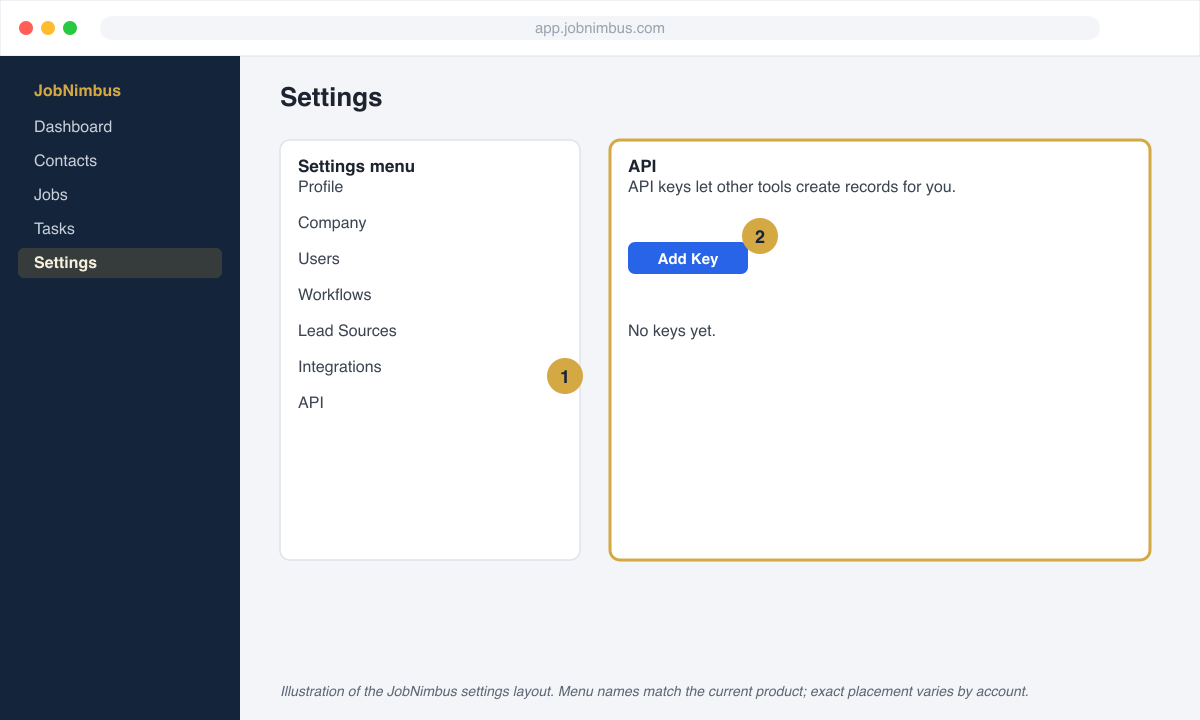
IllustrationSettings, then API. -
Create a key. Click the blue New API Key button in the top right. In the Description dropdown pick Other and type
Vetted Lead Networkso you know what it is for later.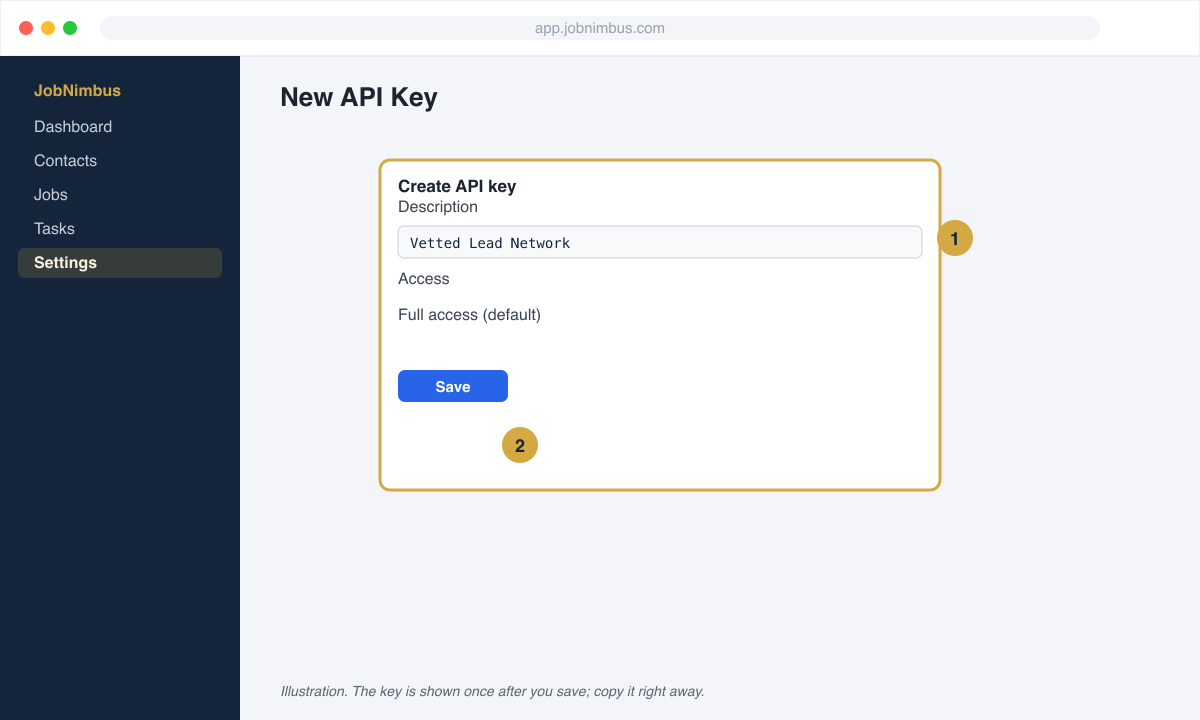
IllustrationGive the key a name you will recognize. -
Pick an access profile and save. Choose an access profile that can create contacts (the default full-access profile works), then click Save. The key appears as a string of characters in the Key column. Copy it.
-
Paste it in your portal. In your Vetted Lead Network portal open Finish setup, then CRM connection. Choose JobNimbus, paste the key, and save.
Official article: How do I create an API key? on the JobNimbus help center.
What we create in JobNimbus
Section titled “What we create in JobNimbus”For every lead we create a Contact with the homeowner’s name, phone, email, and property address. The lead source is set to Vetted Lead Network. If that source does not exist yet in your account, add it under Settings, Contacts, Lead Sources so reports group correctly.
Check it worked
Section titled “Check it worked”When our test lead named VLN Test arrives, open Contacts and search for it. Then reply got it in your portal or to the text you received.
Common problems
Section titled “Common problems”- You cannot find the API page. Your login is not an admin. Ask the account owner to create the key or make you an admin.
- The key stopped working. Someone deleted it in JobNimbus. Create a new one and paste it into your portal again. Leads went to your email and text in the meantime, nothing was lost.